Sunday, June 21, 2009

Module 6 : More Web 2.0 applications, Library 2.0 and conclusions about the program

#11 More Web 2.0 Applications & Library 2.0

Throughout the course of this Learning 2.0 program we have explored just a small sampling of these Web 2.0 technologies, their growing and potential impact on daily life in empowering users with the ability to create and share content.
But given time there are so many more we could explore.

Discovery Exercises:
  1. Browse the list of subjects for Web 2.0 Award 2008 winners.
  2. Spend 10 minutes exploring some sites &/or tools.
PS Be careful as some tools require plug-ins or involve serious downloads

Google Maps is a Web 2.0 Award 2008 winner. Discover how Yarra Plenty Regional Library and Domain.com.au integrate this tool into their websites.
_________________

#12 Conclusions and review

Congratulations!! You’ve reached the final exercise!

There is one more activity for you to post to your blog.

Discovery Exercise:
  1. Please reflect on the program and your learning journey. Post a paragraph or two of thoughts. Here are some questions to prompt you if you're drawing a blank ...
  • What were your favorite discoveries or what did you find most interesting in this program?

  • Did you make any finds on the sites or tools explored above?
  • Could you see any applications for uses in a library setting? Are libraries adapting/evolving as a result? Positive or negative change or both?
  • Were there any unexpected outcomes from Learning 2.0 that surprised you?

  • Do you have reservations about the value of the program? Were there negative aspects for you?

  • What could have been done differently to improve upon this program’s format or concept?

In closing, thank you all for participating.

_________________

Optional Exercise 1 : Social Networking Websites

Social Networking websites are online communities that allow users to communicate and interact with one another. Some of the more popular social networking sites are Facebook, Twitter, LinkedIn and Bebo.
Explore Twitter and blog about your experience. Do you think Twitter could be used in a Library setting?
1. Read about Twitter and Tweets
2. Watch the 'How to use Twitter' video.
3. Try the Twitter Search feature. Search for "Kevin Rudd" and see recent tweets on this topic. Try your own search or explore one of the trending topics.

*Note the Search function on Twitter is not sophisticated. Try "kevin rudd + twitter" search on Google or try the Twitter Yellow Pages .

4. Blog about your experience.

Check out the AID Training Team Twitter account. Although beware!....Tweets will be few and far between.


Optional Exercise 2: Image Generators
Image generators allow you to easily manipulate image and graphics to create fun images like these:

Discovery Resources:
The Generator Blog
Letter James
FD Toys
Also try searching for online generators, text generators or image generators!

Discovery Exercise:

  1. Play around with some image generators and find one that you like.
  2. Create an image.
  3. Save the image to your blog.
  • Copy and paste the code that the page provides OR you may just need to right click on the image and then save it to the PC hard drive before using Blogger’s image button to add it to your post.
If you want to explore Learning 2.0 further...

There are other Learning 2.0 programs and subsequent ones which incorporate different and/or new activities, all of which cannot be included here.
Read about programs beyond the original 23 things (10+13) below.

Learning 2.1 - (a PLCMC program following on from the original 23 things)

The Internet Can Change Your Life - series of daily assignments

This AID-Learning 2.0 Program has been based on the PLCMC Learning 2.0 program developed by Helene Blowers of the Public Library of Charlotte & Mecklenburg County.
Many thanks to Helene Blowers for allowing us to use her program.
Learning 2.0 is licensed under
Creative Commons

Thursday, June 18, 2009

Module 5 : Photos & Videos – Flickr and YouTube

# 9 Flickr

Photo sharing websites have been around since the 90s, but Yahoo owned Flickr catapulted the idea of “sharing” into a full blown online community.
Note there are other other photo sharing sites such as Photobucket, Snapfish, and Webshots among others.

Keyword tags were first used by Flickr to create associations and connections between photos and users of the site.

We will look at Flickr and discover what this site has to offer. See what groups are, and examples of how people and other libraries are using Flickr.

'State Library of Victoria' by ipsmith36hdr

Discovery Resources:

Browse the following resources about Flickr.

  • The National Library's vision of building a comprehensive pictorial record of Australian history. Here is the media release from the NLA about this collaborative project
  • Look at the National Library Picture Australia website. Click on the flickr icon on the front page and you will be lead to a display of images the National Library have used from Flickr.
  • Many libraries and cultural institutions (incl the Powerhouse Museum) share significant photographic collections through a Flickr initiative known as the Commons on Flickr. You can learn more about the Powerhouse Museum and their Flickr contribution here.

Discovery Exercise:

  1. Spend 5 mins looking around Flickr and discover an interesting image. Note down the name of the photographer so you can credit them in your post.
  2. Add an image to your blog
  • Save the photo you want to upload to your computer (either by a right mouse click for the image or click on the file and save as from the menu bar)
  • Log into your blog and go to a new post
  • Add the photographer's name and any caption you wish
  • Click on the Add image icon along the top of the post editing page.
  • This will open a window where you can browse your computer for the image you have saved
  • Click on upload image and it should appear on your blog
  • After you have uploaded the image to your blog you will be able to move it around the page
  • Click publish post to make the post live on your blog.

Note: Re Photo posting etiquette:
When uploading and including pictures onto your blog that weren't taken by you (unless you have the photographer's consent), always give credit.
When posting identifiable photos of other people (especially minors) it is advisable to get the person's permission.
_____________________

Optional Exercises:
  1. You can create your own account for Flickr then use Flickr's blogging tool to add the image in your post
  2. If you have access to a digital camera you might like to upload a picture to flickr.
  • To upload a photo first save your photo to your computer (or USB)
  • Go to the flickr website at http://www.flickr.com/
  • Sign in (using your login and password)
  • Click on upload photos
  • Click on browse and locate where you have saved your photo (you can upload more than one photo at once)
  • You can add tags describing your photo at the bottom of the page
  • Click upload to complete the process.
Want more?

#10 Video Sharing Websites - YouTube
Online video hosting sites allow users to easily to upload and share videos on the web. YouTube is the most popular site allowing users not only to upload their own video content easily, but also embed clips into their own blogs or sites.

Like any free site you’ll also find a lot not worth watching, but take some time to explore.

Discovery Exercise:

  1. Explore YouTube and the educational alternatives to YouTube - TeacherTube or Science Hack
  2. Write a paragraph or two blog post about your experiences with Flickr and these video sharing sites. What did you like or dislike about the sites? Why did you choose the image or look at the videos that you did? Can you see any features that could be applied to libraries or library websites?
_____________________
Optional Exercises:
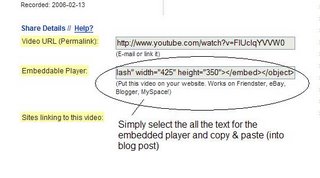
Try placing the video inside your blog using the copy and paste code for the for "Embeddable Player.” Note: you'll need to use Blogger's Edit HTML tab when pasting this code.

Other popular video hosting sites include:
NOTE: Videos, like music downloads, are bandwidth hogs. You may have some trouble playing long clips

Thursday, June 4, 2009

Module 4 : Tagging, Del.icio.us and Library Thing

  • #7 Tagging and Del.icio.us


Tagging is an open and informal method of categorizing that allows users to associate keywords with online content (webpages, pictures & posts).
Unlike library subject cataloging, which follows a strict set of guidelines (i.e.Library of Congress subject headings), tagging is completely unstructured and freeform, allowing users to create connections between data anyway they want.
Blogger allows you to add tags to your blog posts, while Google Reader allows you to add tags to subscription items.
Tags are finding aids.
This module looks at tags, focuses on Del.icio.us (keyed in as http://del.icio.us/) and explores Library Thing

Del.icio.us is a social bookmarking manager which allows you to bookmark a web page and add tags to categorize your bookmarks.

Many users find that the power of Del.icio.us is in the social network aspect, which allows you to see how other users have tagged similar links and also discover other websites that may be of interest.
For this #7th exercise, browse through the following discovery resources including libraries and organisations that are using tags. Look at Del.icio.us and learn about this popular bookmarking tool.

Discovery Resources: Tags
  • The ABC news website now features tags on their news stories. Browse by tag cloud (at the bottom of the ABC news page see the link to Tags and Tag Cloud.
  • The new SLV Search interface encourages the adding of tags. View the tags page and links to the tag list at the bottom right on any item record. ie Search for a Tim Winton title
  • The BBC news website invites readers to tag articles using Del.icio.us.

Discovery Resources: Del.icio.us

Discovery Exercise:

  1. View the Del.icio.us account has also been created for use by operators on SLV chat.
  2. Explore the site options and try clicking on a bookmark that has also been bookmarked by a lot of other users. Can you see the comments they added about this bookmark or the tags that they used to categorize this reference?


# 8 Catalogue your own books with Library Thing

Are you book lover or cataloguer at heart? Or do you enjoy finding lost and forgotten gems on the shelf to read?
Then LibraryThing may be just the tool for you.
Developed for booklovers, this online tool not only allows you to easily create an online catalogue of your own it also connects you to other people who have similar libraries and reading tastes.
Add a book to your catalog by just entering the title -- It’s so easy that you don’t even need MARC record training to do it – or connect with other users through your similar reading tastes.
There are lots of ways to use LibraryThing:
  • You can even view your books on a virtual shelf,
  • add a widget to display titles that are in your catalogue or install a LT Search box on your blog.

Library Thing members have catalogued over 43 million books online. (LibraryThing also has group forum for librarians users).

For this #8th exercise view the resources about Library Thing and then blog about tags, del.icio.us and what you think of Library Thing. Creating an account to Library Thing is an optional exercise.


Discovery Resources:

  • About LibraryThing
  • Library Thing tour
  • Yarra Plenty Library uses Library Thing tags in their online catalogue. Search on a general fiction title for best results ie The Slap, Christos Tsiolkas. View the tags at the bottom of the 'Item Information'. View LCSHeadings on the 'Catalogue Record' (2nd tab across).

Discovery Exercise:

  1. Using the resoures above, have a look around LibraryThing.
  2. Blog about your thoughts on tags, Del.ico.us and LibraryThing. Create a blog post about your experience and thoughts about this tool. Can you see the potential of this tool for research assistance, or is it just as an easy way to create bookmarks that can be accessed from anywhere? What are your thoughts on the wider use of tags, including on the SLV catalogue?

Optional Exercise:

  1. Create an account for Library Thing. You will need to create a new account with any username and password, with an email address optional (Note: it is not a Google product like Blogger).
  2. Add a least 3 books to your library. You can calso create a link on your blog to your Library Thing.
    ___________


Tuesday, June 2, 2009

Module 3 : RSS Feeds and Podcasts

#5 RSS feeds

You’ve heard of RSS? You’ve seen those small tags on websites?

RSS is revolutionalizing the way news, media and content creators share information, but it also is swiftly changing the way everyday users are consuming information.

What is RSS?
RSS (Really Simple Syndication or Rich Site Summary) is a file format that enables website content to be delivered.
You can subscribe to multiple websites and have their syndicated content delivered to you on one page, similar to an email inbox.

You can have information sources, web pages by RSS and podcasts delivered to you through a newsreader or feedreader.

This week’s discovery exercises focus on learning about RSS news feeds and
setting up feed reader (a free online newsreader) for yourself to bring your feeds together.
There are numerous free feed readers.
Bloglines is an alternative that is used in the original Learning 2.0 program. For this exercise we will be using Google Reader.

Discovery Resources:

Discovery Exercises:
  1. Follow the discovery resources above to learn more about RSS and newsreaders.
  2. Using your blog username (email address) and password to login to Google Reader . You can view a good online tutorial about Google Reader here.
  3. Subscribe to at least 3 feeds to your reader. (See below)
Feeds:
4. Create a post (#5 RSS) in your blog about this exercise.
What do you like about RSS and newsreaders?
How do you think you might be able to use this technology in your work or personal life?
How can libraries use RSS or take advantage of this new technology?

#6 Podcasts

Podcasting is a convenient way of automatically downloading audio files to your computer. 'Podcast' generally refers to audio. 'Video Podcast' (or 'Vodcast') refers to the distribution of video files in the same manner.You can then play this audio or video on your computer or transfer the files to a portable MP3 or video player.

There’s a podcast for just about every interest area. You do not have to have an iPod or a MP3 player to access them. All you need is a PC (or portal device) with headphones or a speaker.

iTunes, the free downloadable application created by Apple is their directory associated with podcasts, but if you don’t have iTunes installed there are still plenty of options.

There are other podcast directories such as Podcast.com to use to search and locate podcasts or podcasts are increasingly available directly from organisation websites eg. SLV, ABC.

You can save the desired podcast to your PC or portable device.

You can subscribe to a regular feed of a podcast by downloading a small piece of software that manages all of your podcast subscriptions. When connected to the internet, the software searches for the latest edition of the program on our website, and will download the media file to a folder on your computer, where you can listen or watch it from there, or transfer it to your portable mp3/video player.

Discovery Exercises:
  1. Take a look at Podcast.com , SLV podcasts or ABC and see if you can find a podcast that interests you.
  2. You maybe able to listen to the podcast directly OR you will need to right click onto file, click onto 'Save link as ' to download. It will download to the desktop.
  3. Listen to your podcast.
  4. Create a blog post about your discovery process. Did you find anything useful here?
    Can you see use for podcasts in the library situation?

Module 2 : Wikis & Online Applications ie Zoho Writer

#3 Wikis
A wiki is a collaborative website and authoring tool that allows users to easily add, remove and edit content.
Wikipedia, the online open-community encyclopedia, is the largest and perhaps the most well known of these knowledge sharing tools. With the benefits that wikis provide the use and popularity of these tools is exploding.

Some of the benefits that make wikis so attractive are:
  • Anyone (registered or unregistered, if the wiki is unrestricted) can add, edit or delete content.
  • Tracking tools within wikis allow you to easily keep up on what been changed and by whom.
  • Earlier versions of a page can be viewed and reinstated when needed.
  • And users do not need to know HTML in order to apply styles to text or add and edit content. In most cases simple syntax structure is used.
The use of wikis has grown and libraries have begun to use them to collaborate and share knowledge. Among their applications are subject guide wikis, book review wikis, conference wikis and even library best practices wikis.

Discovery Resources - view these to learn more about wikis

Examples of wikis
Discovery Exercises:
  1. View the SLV Desk Wiki.
  2. Add or edit a page in the wiki.
  3. Create a blog post about your findings. What did you find interesting? What types of applications within libraries and/or at the SLV might work well with a wiki? Are there disadvantages in using a wiki application? (Please include # Wk 2 in the title).
#4 Online Applications ie Zoho Writer

The availability and use of online productivity web-based applications
(eg: word processing and spreadsheets) provides users with the ability to create and share documents over the internet without the need of installed desktop software eg Microsoft Office - Word, Excel etc

One large benefit of web-based applications is you do not have to consider different software versions or file types as you email documents or move from PC to PC.
They allow collaboration by allowing multiple users to edit the same file (with versioning) and provide users the ability to easily save and convert documents as multiple file types (including HTML and pdf).
You can use many of these tools, such as Zoho Writer and Google Docs and spreadsheets to author and publish posts to your blog.
It’s this type of integration with other web 2.0 tools that also makes web-based applications so appealing.

Discovery Exercises:

View a short list of web-based productivity applications
  1. Create a free account for yourself in Zoho Writer. You can sign in as a Google user by using your blog username (email address) and password to login - Make sure you select 'Sign in Using Google'.
  2. Explore the site and create a few test documents of two.
  3. Create a blog post about your discoveries.

If you're up for the challenge, try using Zoho’s "publish" options to post to your blog.

* Note: You can also explore Google Docs and spreadsheets Google's online word processer, as another option for this exercise.

Module 1 : Learning 2.0 Introduction, Registration & Blog Creation


#1 Create a blog

It is time to setup your very own personal blog
Your blog is where you will be recording your thoughts, discoveries and exercises for the Learning 2.0 program
To set up your blog, use Blogger*, a popular free online blog hosting service that is extremely easy to use.

Creating a blog using Blogger takes just three steps:
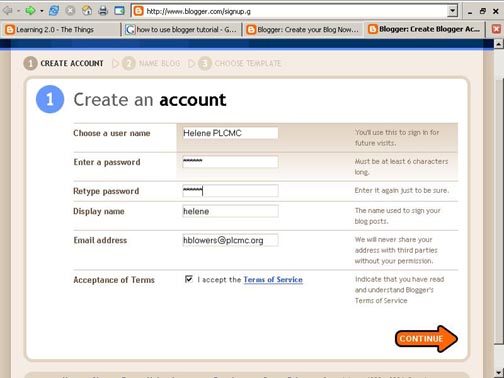
  1. Create an account (view screenshot)
  • You can use any email address to set up a Blog in Blogger.
    As Blogger is a part of Google, the software will invite you to set up a Gmail account to create a Blog. This is not necessary.
    (you can use your SLV email)
Write down your Blog email (Username) and Blog password.

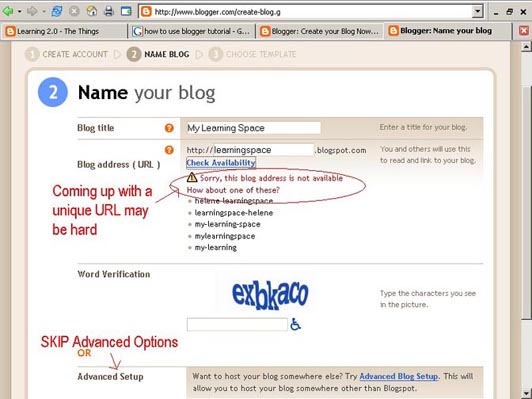
2. Name your blog and create an address(view screenshot)
  • Your Blog name or title maybe anything you wish
  • Your Blog address is the unique URL for your blog. People often use their blog title, which then joins to the standard blogger address .blogspot.com
ie. http://(xxxx).blogspot.com
Write down your Blog name and Blog address

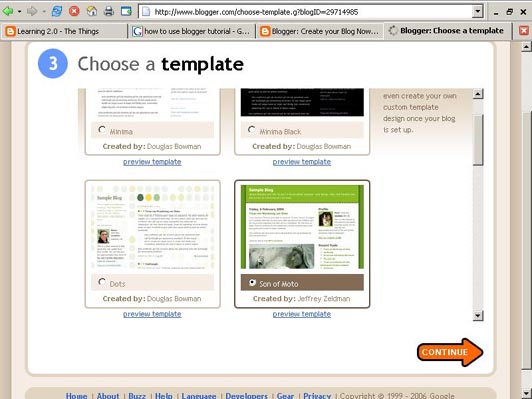
3. Select your template. (view screenshot)

  • There are many different templates to choose from. You can then modify your colours/fonts etc

4. Create your first post. You may wish to say how you feel about embarking on the program; how you found the blog creation process; or just hello. (Please include # Wk 1 in the title).

Notes:
To view your blog:

  • Your blog address is http://(xxxx).blogspot.com, (xxxx)=the unique identifier you entered in Step 2.
To add posts:
  • The maintenance page that you will use to add posts, edit or change the step-up your blog is called the dashboard
  • Select 'New Post'
  • The title is the heading to each entry or post.
  • Labels are optional tags or like subject headings to each post.
  • Select 'Publish Post' to publish the entry to your blog.
  • View your Blog.
* Log out of your blog by clicking on the Sign out link (top right hand side)

*Login to your blog again using your Blog email (username) and Blog password to check all is working.

#2 Register your Blog
Register your blog by writing your name, blog name and URL of your blog on the sheet provided in the training session OR send your name, blog name and URL of your blog to the following email address leasey@slv.vic.gov.au

Once you have registered your Blog it will be listed on the
AID Participants Blog
  • AID Participant's Blog

You can find a link to the AID Participant's Blogs in the 'Useful Links' section of the Learning 2.0 Program Blog (Left side of the Blog). From here, you will be able to browse other participant's blogs and make comments on each others posts. Check your own blog for comments already made by the Learning 2.0 trainers.

__________

Optional Exercise:
Many libraries are now using Blogs as a way of connecting and publishing information to the wider community. Explore a selection of Australian and British Library blogs, as listed below.
How do you fell about blogs as a method for communication?
Do you have any ideas for future SLV blogs?